2012 Exercise statistics

2010 2011 2012
Running (km) 1133 1053 1132
- Half-marathons 3 (2:12, 1:57, 1:50) 1 (1:53) 1 (1:42)
- Marathons 1 (4:42) 1 (4:13) 1 (4:00)
- Orienteering (events) 0 7 30
0-km weeks (no running at all) 12 8 11
Cycling (km) ~100? 2924 1853

The running kilometres include orienteering. Some goals for 2013:

  • 1:3x half-marathon.
  • 3:4x full marathon.
  • >3000km cycling. A 200km brevet ride would be nice.

See also: 2011 statistics

LPKF Protomat S91 PCB-mill

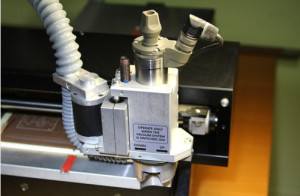
Update: here's a picture of how the original spindle looks like.
lpkf_protomoat_original_spindle

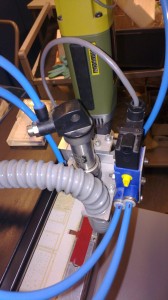
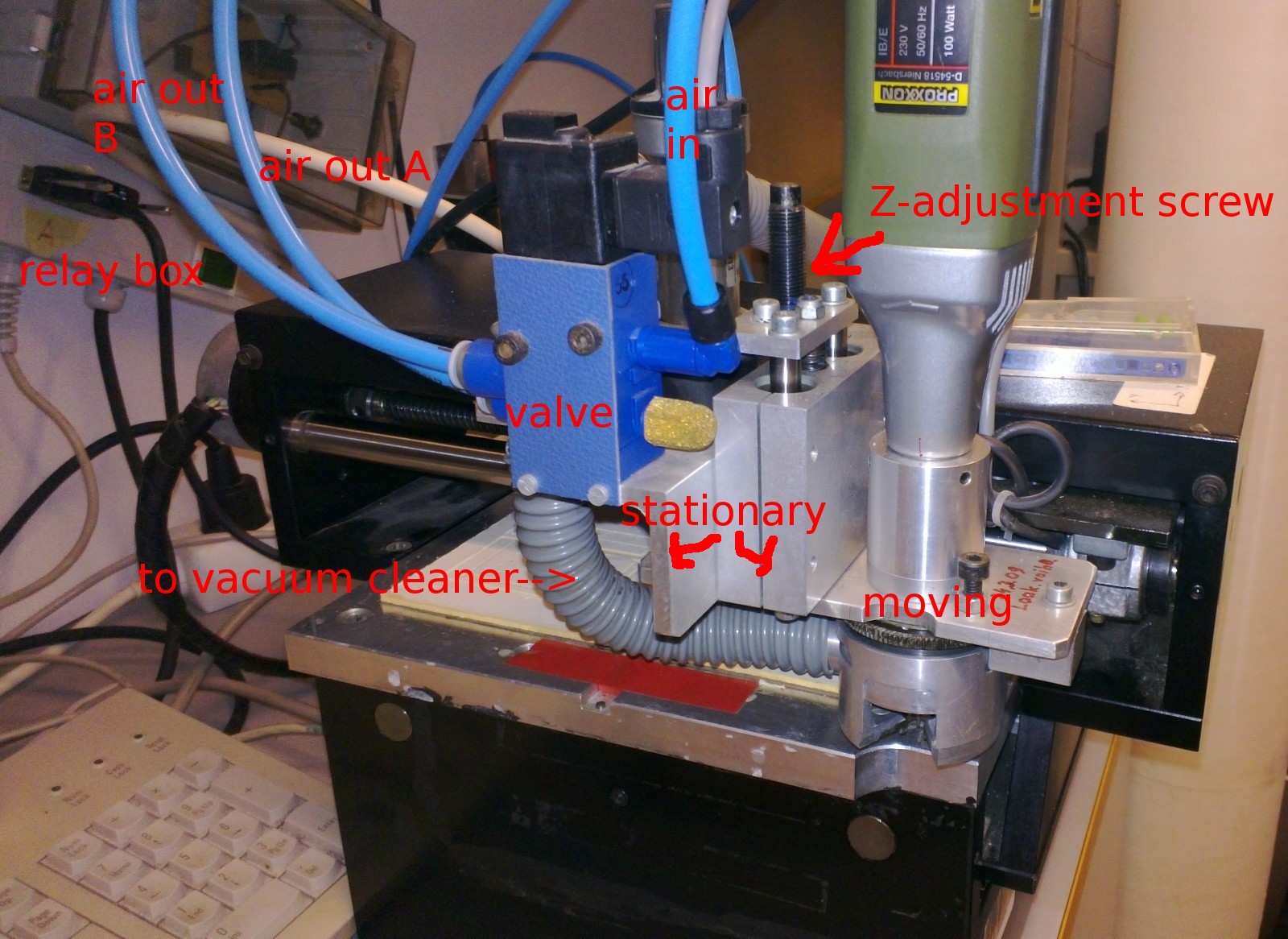
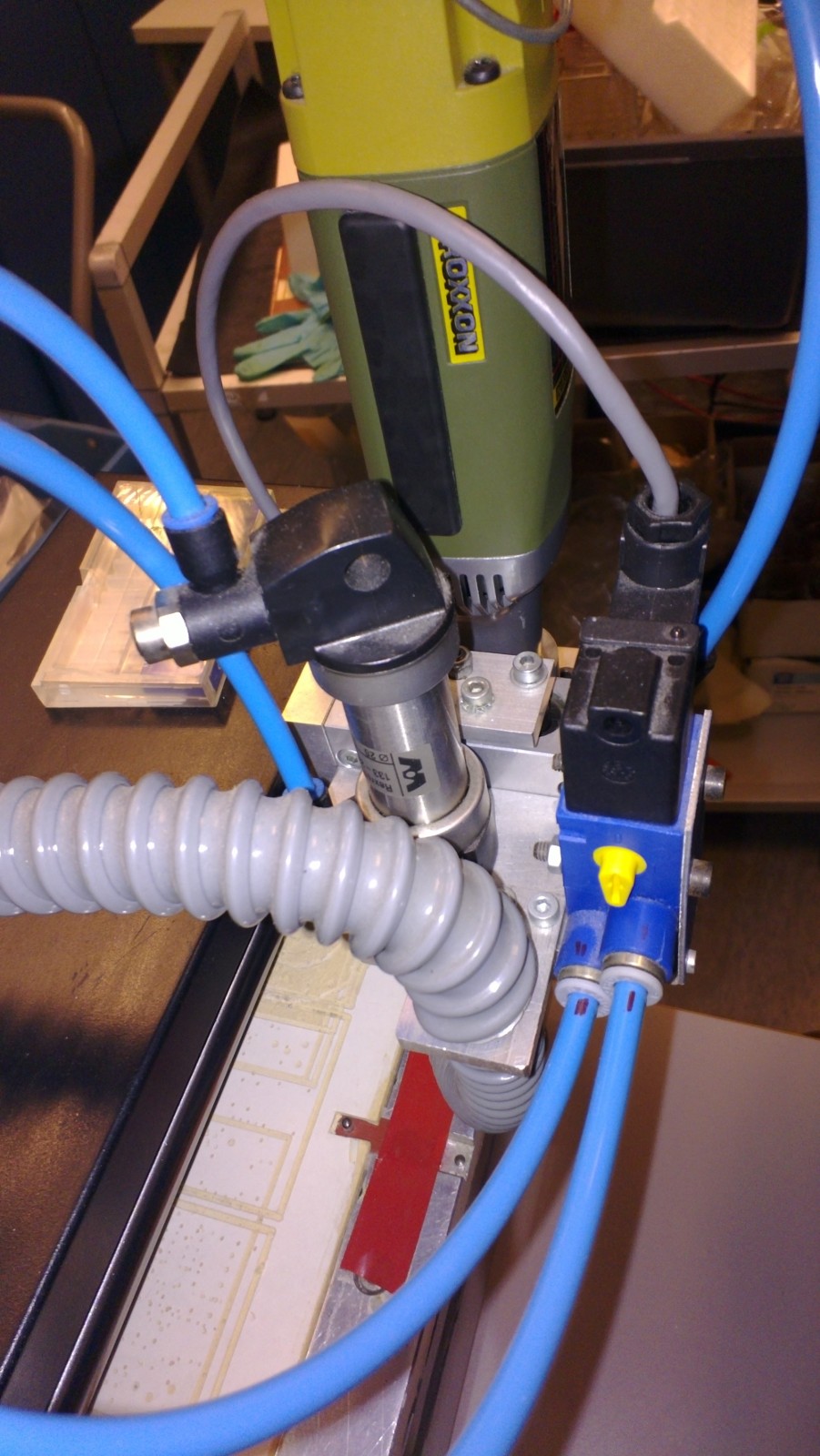
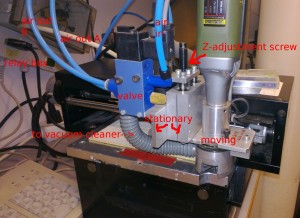
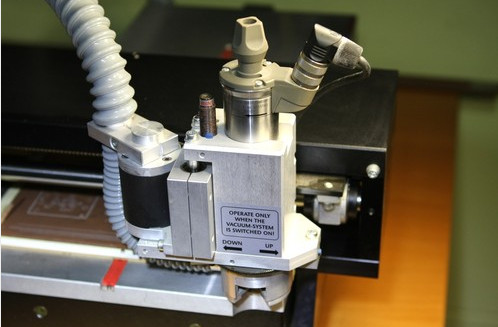
By popular demand, some pictures of the modified LPKF Protomat S91 PCB-mill (featured here). The spindle assembly on this mill has been re-built. The original has an LPKF spindle motor and a solenoid for pushing/pulling the spindle up/down along the Z-axis. This modification uses a Proxxon spindle and an air-cylinder for the Z-movement.
overview 

overview2

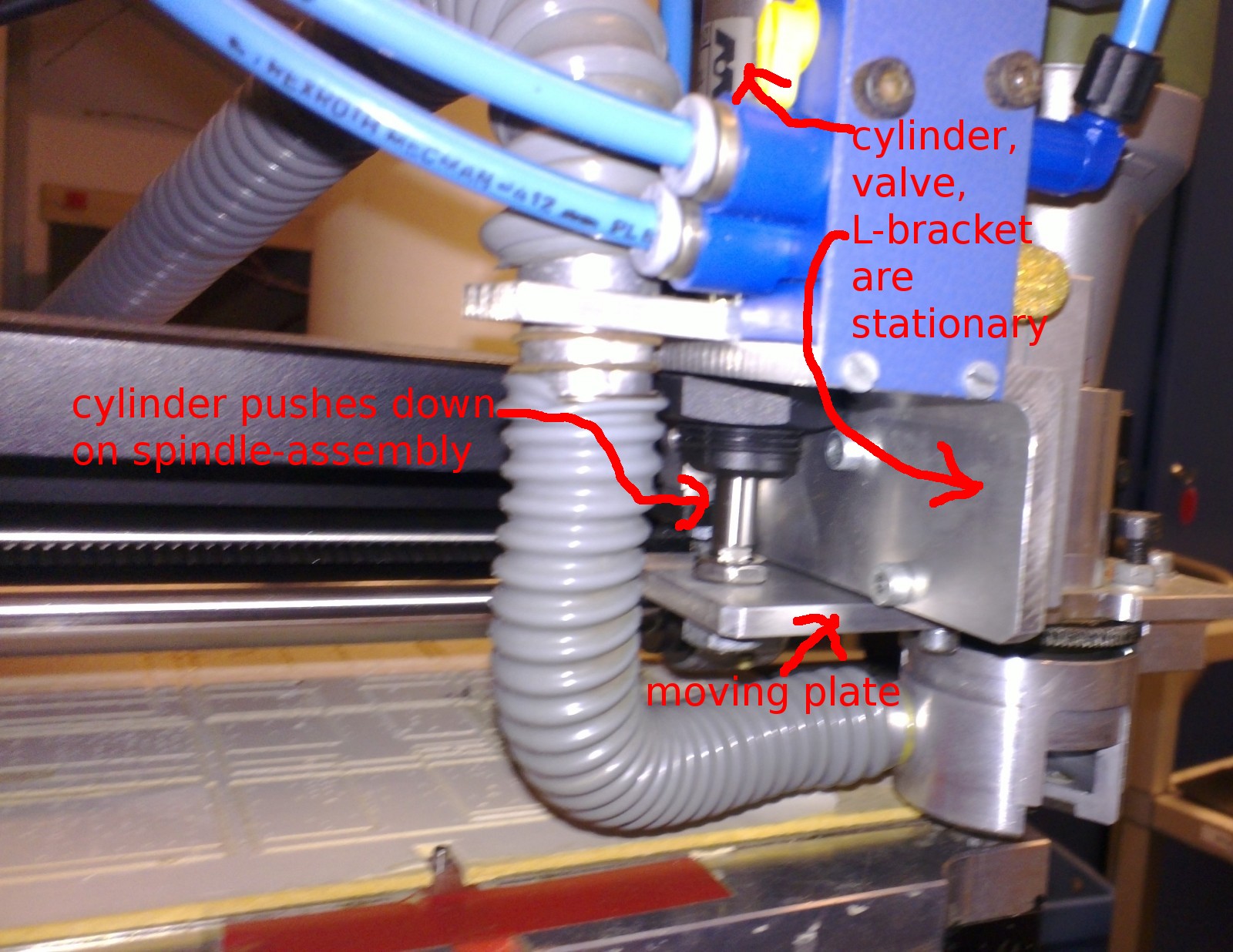
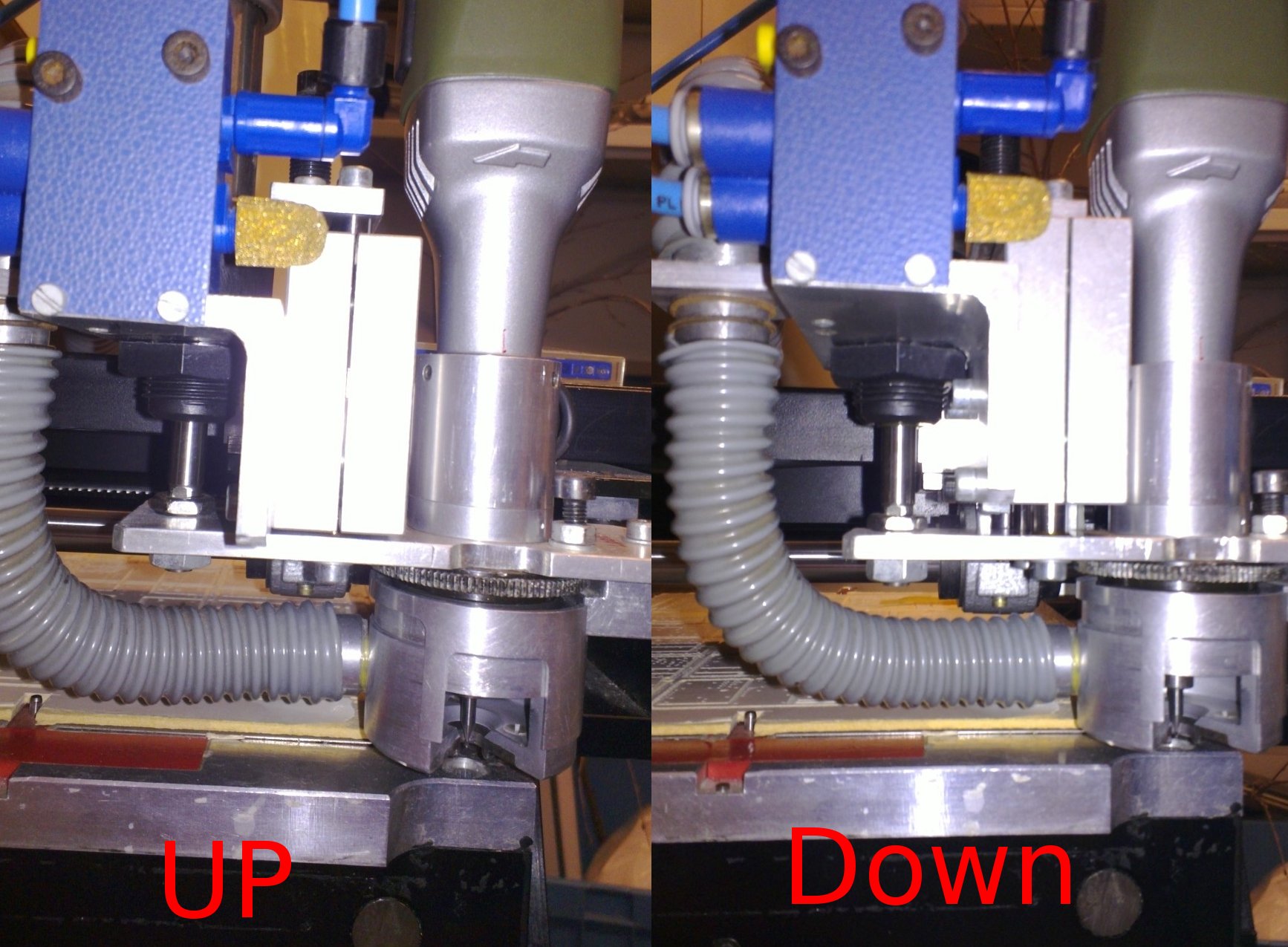
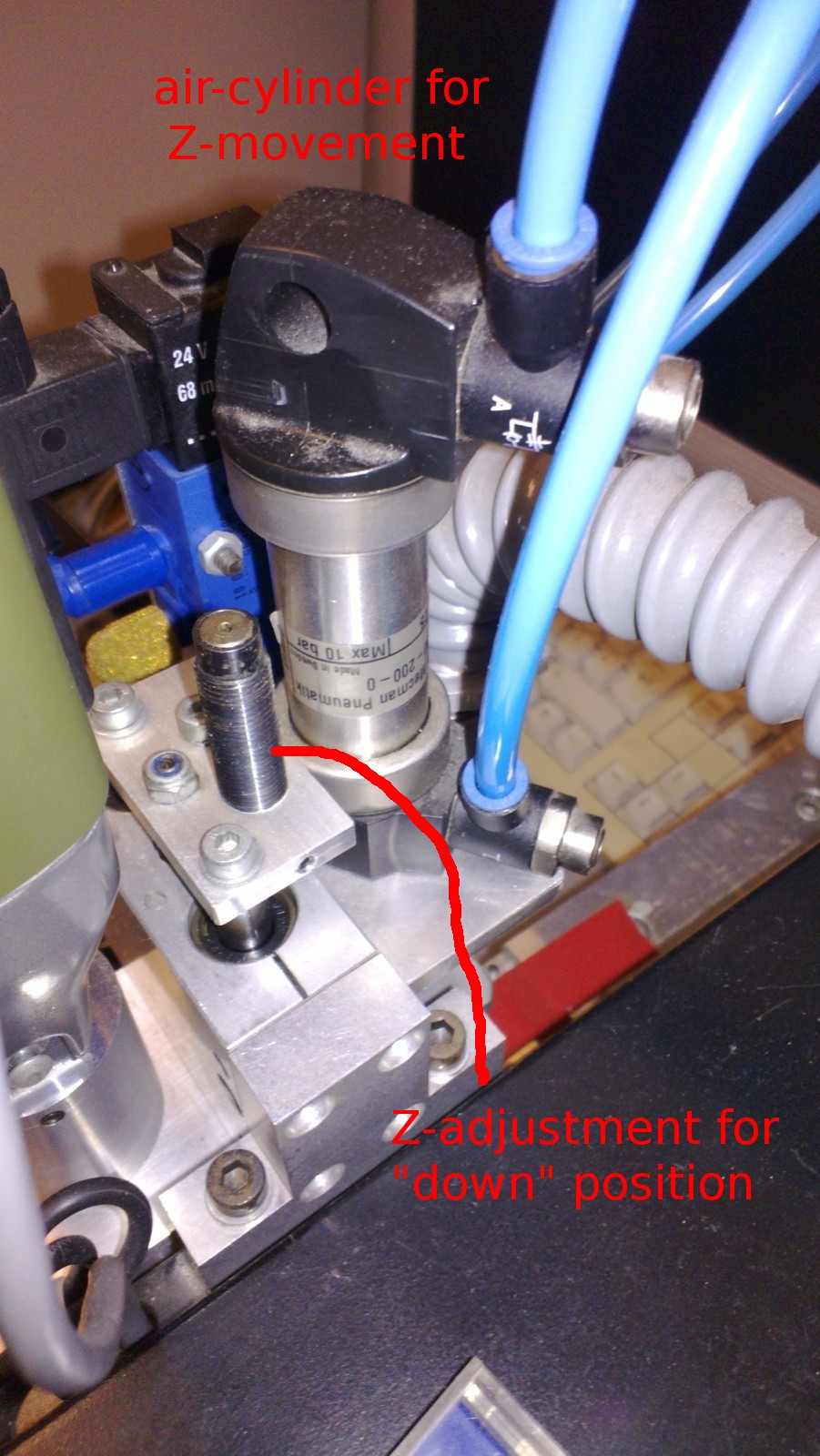
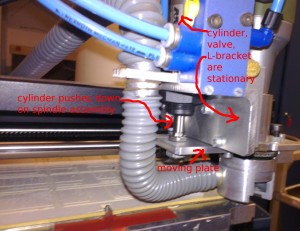
These two pictures shows the spindle from the front. Pressurized air is input to the valve which routes it either to output A or B. This pushes the air cylinder either to the UP or DOWN position. The cylinder pushes on an aluminium plate to which the spindle motor is attached. The moving plate is guided by a linear bearing. A screw at the top of the linear bearing allows adjustment of the Z-depth of the DOWN position. A spring at the top also helps with pushing up the spindle.
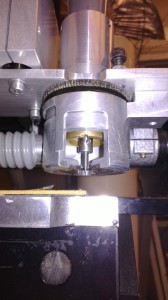
cutter


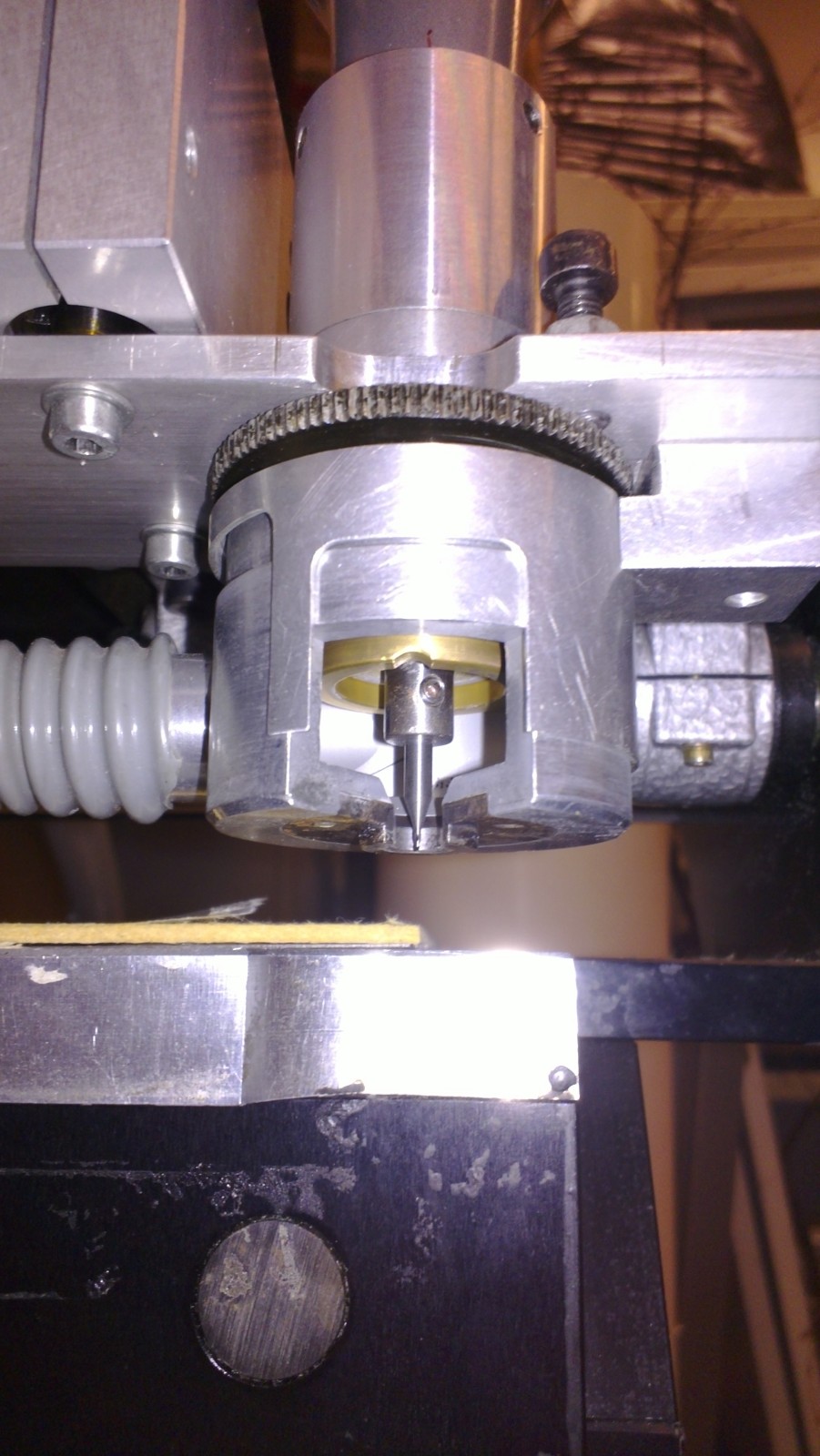
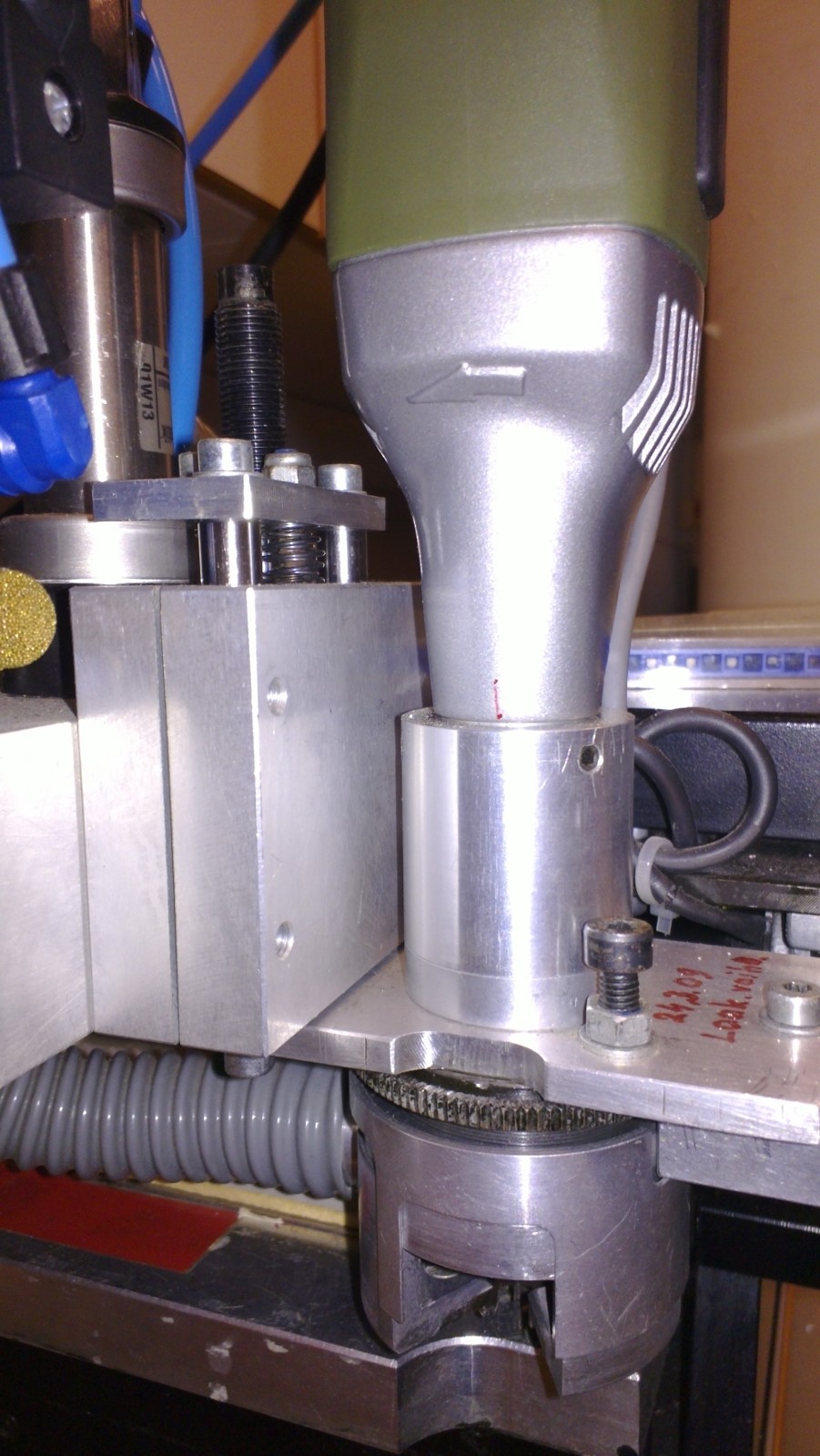
This picture shows the cutter. A vacuum cleaner attaches to they grey tube, and sucks away all chips produced during drilling and milling. A cylindrical cover or "door" around the spindle (now open for tool change) is rotated shut when the machine runs.
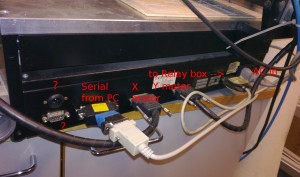

connections

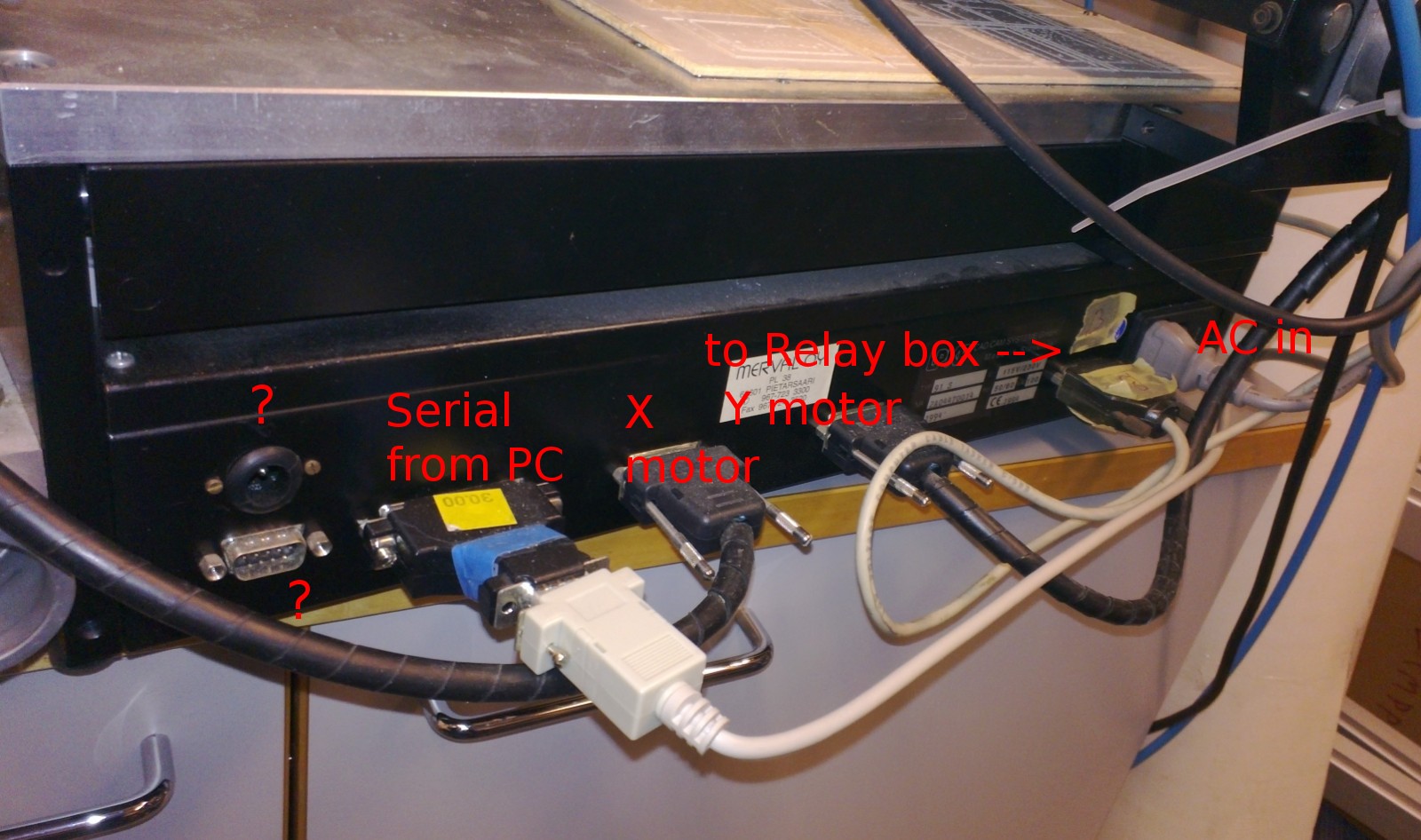
This shows the electrical connections. The modification of the spindle involves connecting a cable from the second connector from the right to a custom-built relay box. Otherwise the connections are as on a standard machine.
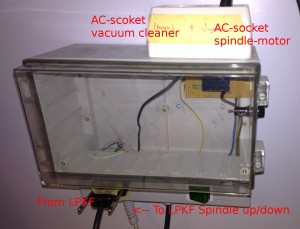
relay_box


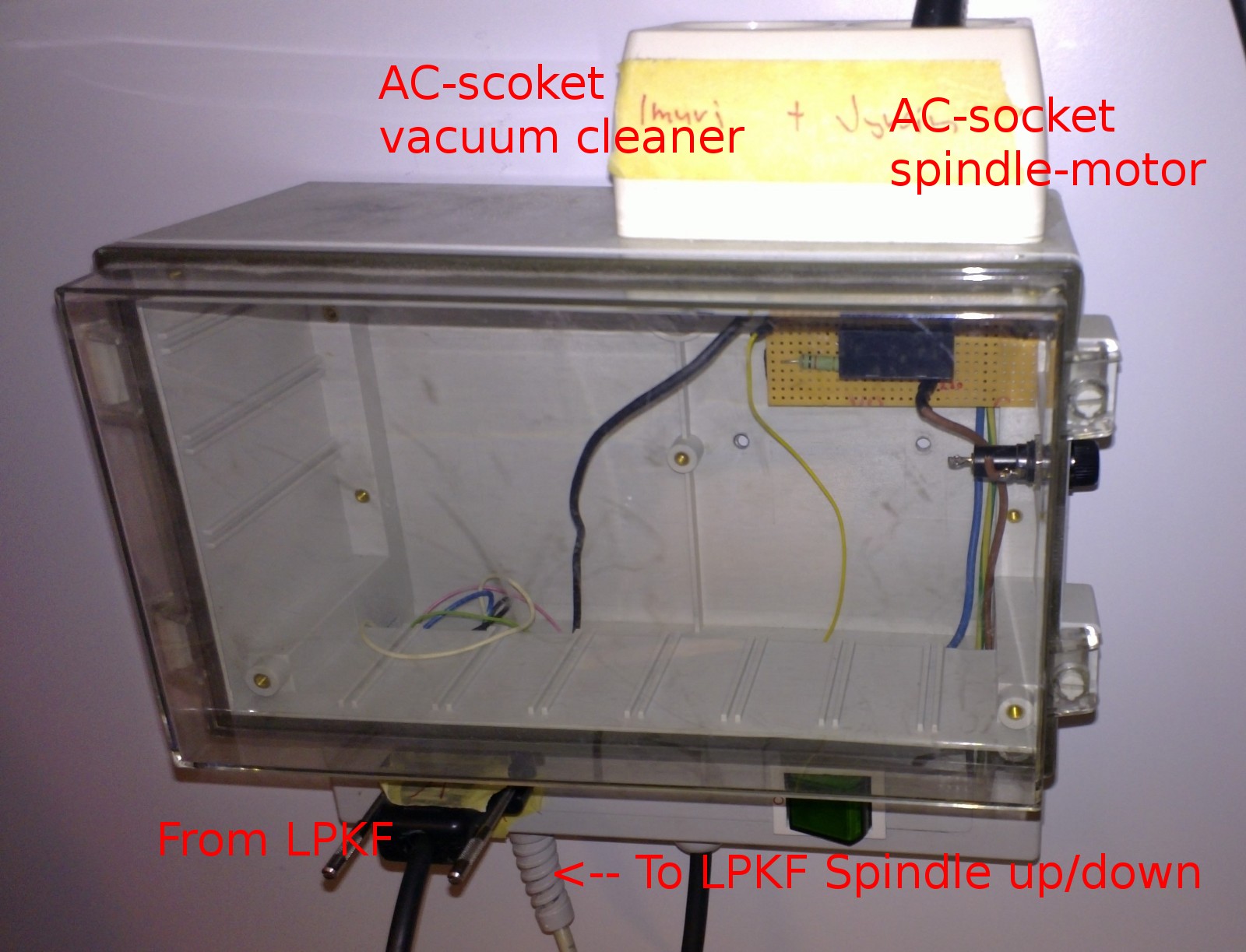
This shows the relay box. The cable from the base of the machine is used to control three On/Off devices: vacuum-cleaner on/off, spindle-motor on/off, and Z-axis up/down. The spindle-motor and vacuum cleaner connect to standard AC-mains sockets. The Z-axis up/down control signal is connected to the air-valve on the spindle assembly.
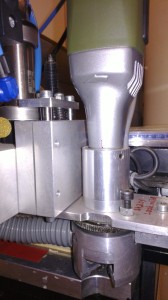
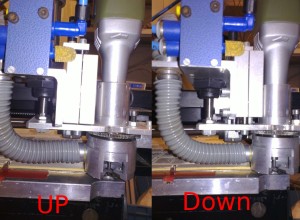
spindle
up_down

Some additional views. Note how small the required Z-movement is.
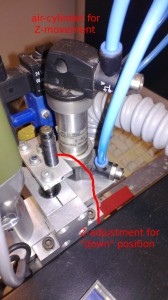
z-cylinder
z-cylinder2

These pictures show the air-cylinder.
 

Dual-needle pyVCP meter

dual_meter

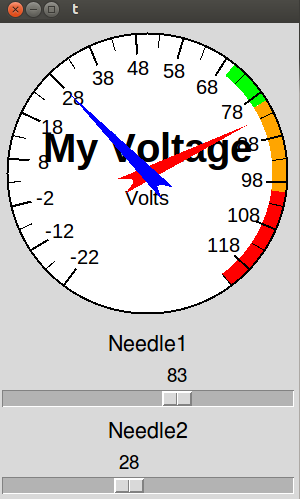
By popular demand, a quick hack that modifies the pyVCP meter widget to have two independent needles. It's used inside the <meter> tag by specifying <halpin2>"my2ndpin"</halpin2> and hooking up something to that pin. If <halpin2> is not used meter works as before, showing only one needle.

There's an XML file for this test-panel, a short HAL-file that hooks up the pins, and a shell script to run it all here: pyvcp_dual-needle-test

The modifications to linuxcnc source required are in lib/python/pyvcp_widgets.py: 0002-dual-needle-meter-use-with-halpin2-meter2-halpin2.patch
NOTE: This is a quick hack to make it work - don't take my code/patch too seriously...

Thursday manual milling

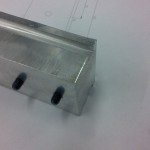
I made this ca 78x48x31 mm mount for a Faraday Isolator (Model IO-7-633 Optics For Research, now sold by Thorlabs) from 50x50 Aluminium bar on the manual mill at work. It raises the isolator up from the table by 31 mm. The isolator is attached to the mount with two M6 screws, 28 mm apart. The cap-head screws are countersunk so they don't protrude from the bottom. This mount is clamped to the optical table using the 8x5 mm slots in the sides.

Real-Time Tuning

I tried a number of things that are supposed to improve real-time performance, as described in this forum post.

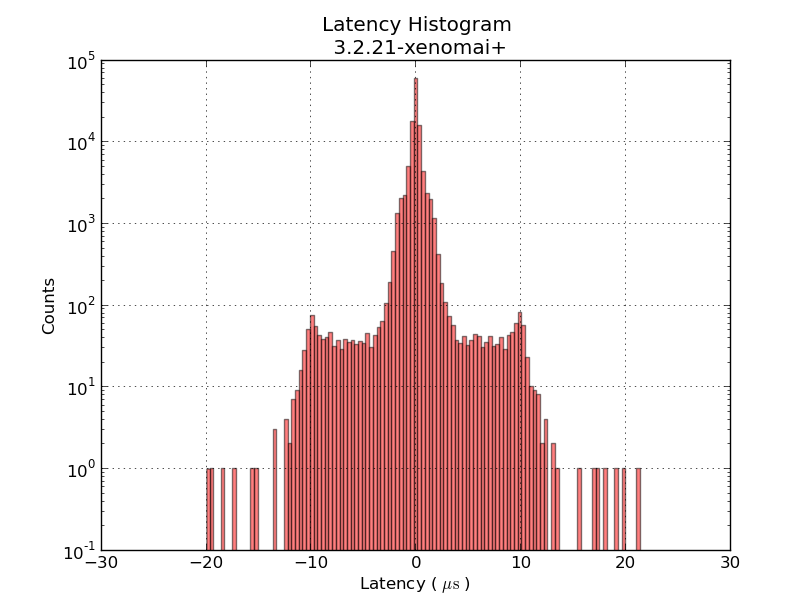
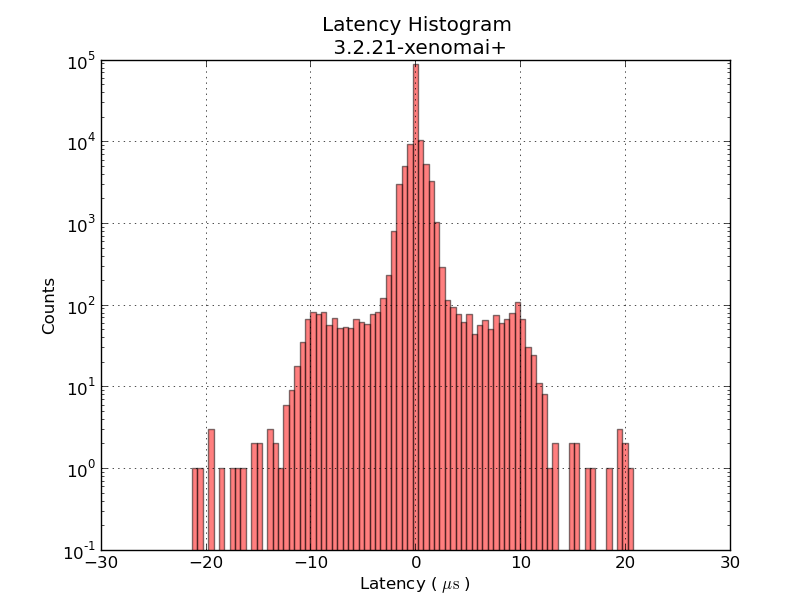
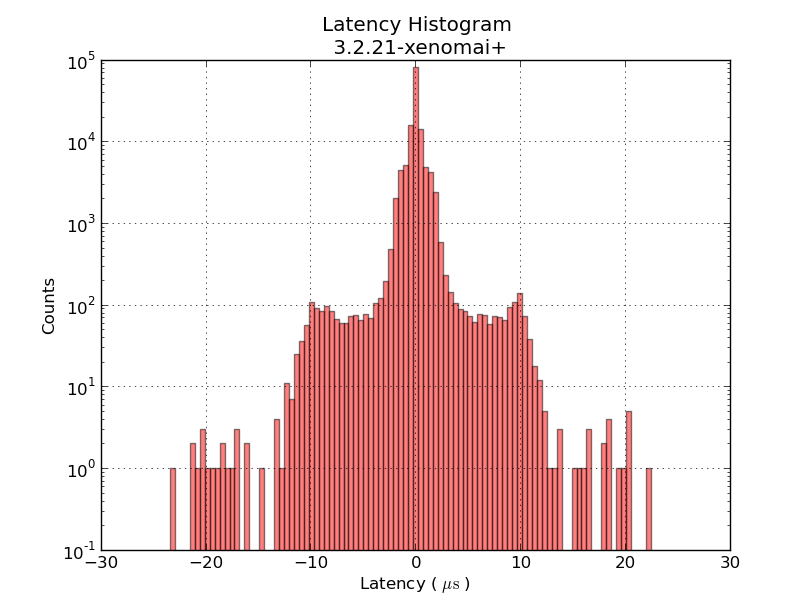
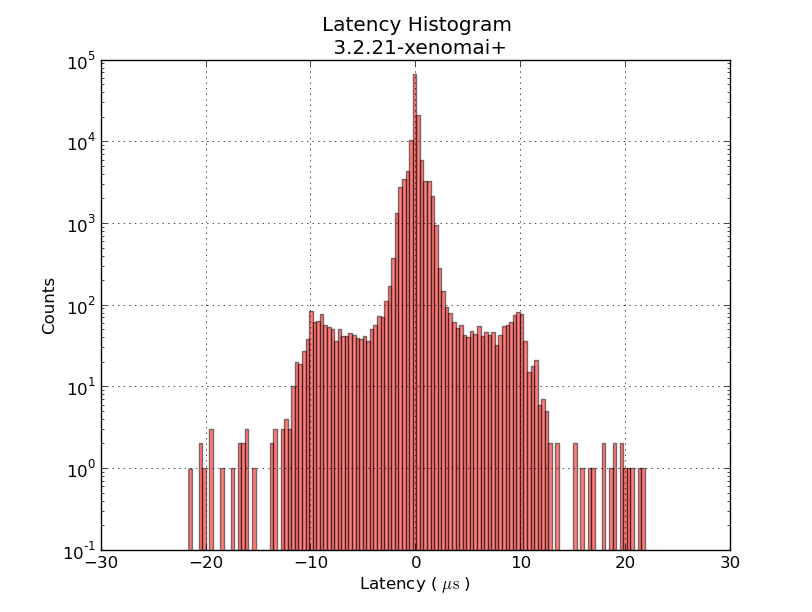
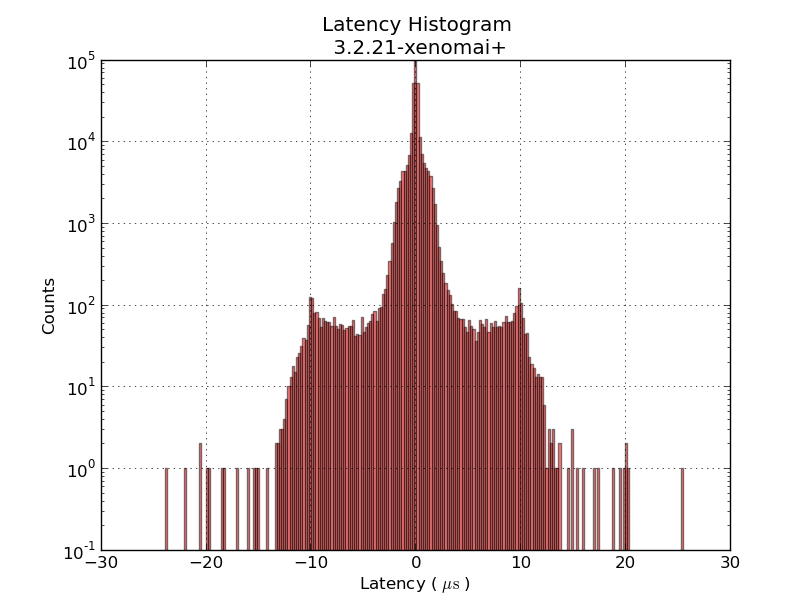
But not much changed. This series of jitter-histograms shows little or no changes:

0 1 2 3 4

The things I tried are roughly

  1. measure first latency histogram 0.png
  2. uninstall the package irqbalance using synaptic. reboot.
  3. measure 1.png
  4. in /etc/default/grub modify GRUB_CMDLINE_LINUX_DEFAULT="isolcpus=1 acpi_irq_nobalance noirqbalance"  (Aside: why are the files in /etc/grub.d/ made so incredibly hard to read? Someone should re-write them in Python!). Run sudo update-grub. reboot.
  5. measure 2.png
  6. Add irq-affinity.conf to /etc/init/
  7. Add set-irq-affinity and watchirqs to /usr/local/sbin. reboot
  8. measure 3.png
  9. Try to tweak BIOS settings. Turn off power-saving features, etc.
  10. measure 4.png

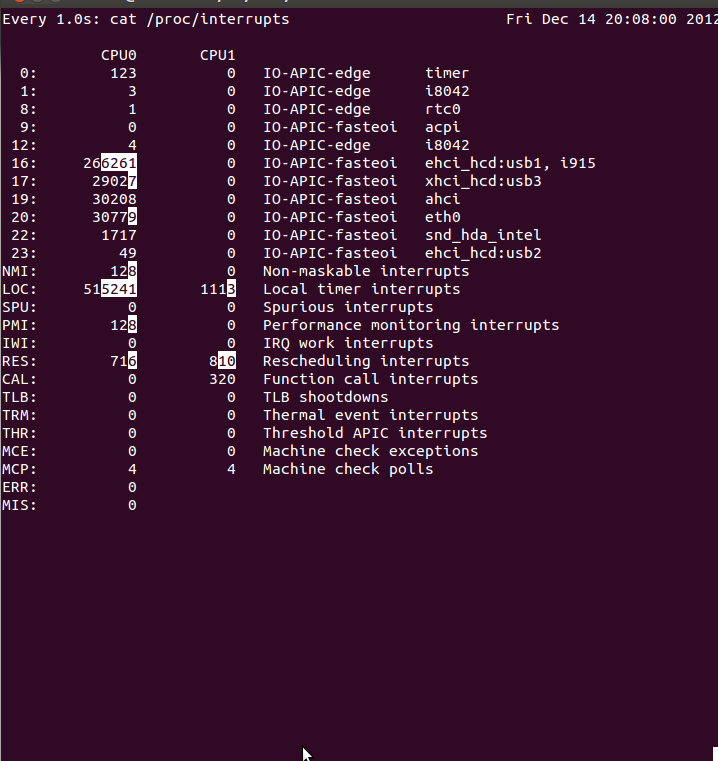
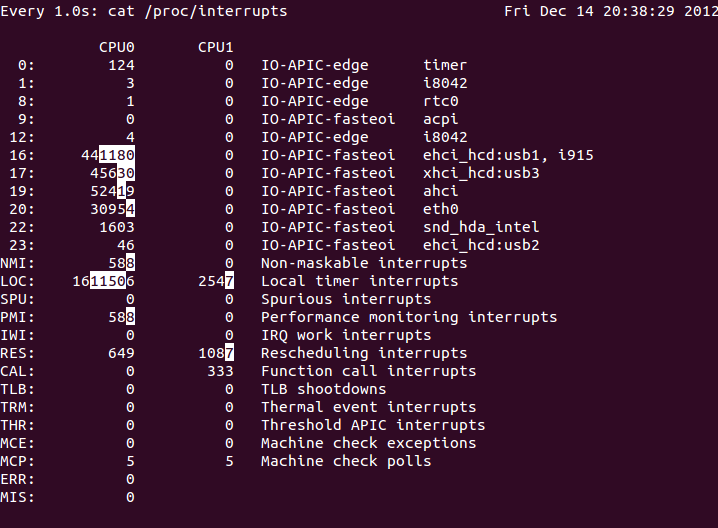
The output of watchirqs looks like this:

watchirqs_before_boot watchirqs_last

The scripts mentioned above: irqstuff

Temperature PID control - Part Deux

Update: this version of the component may compile on 10.04LTS without errors/warnings: frequency2temperature.comp (thanks to jepler!)

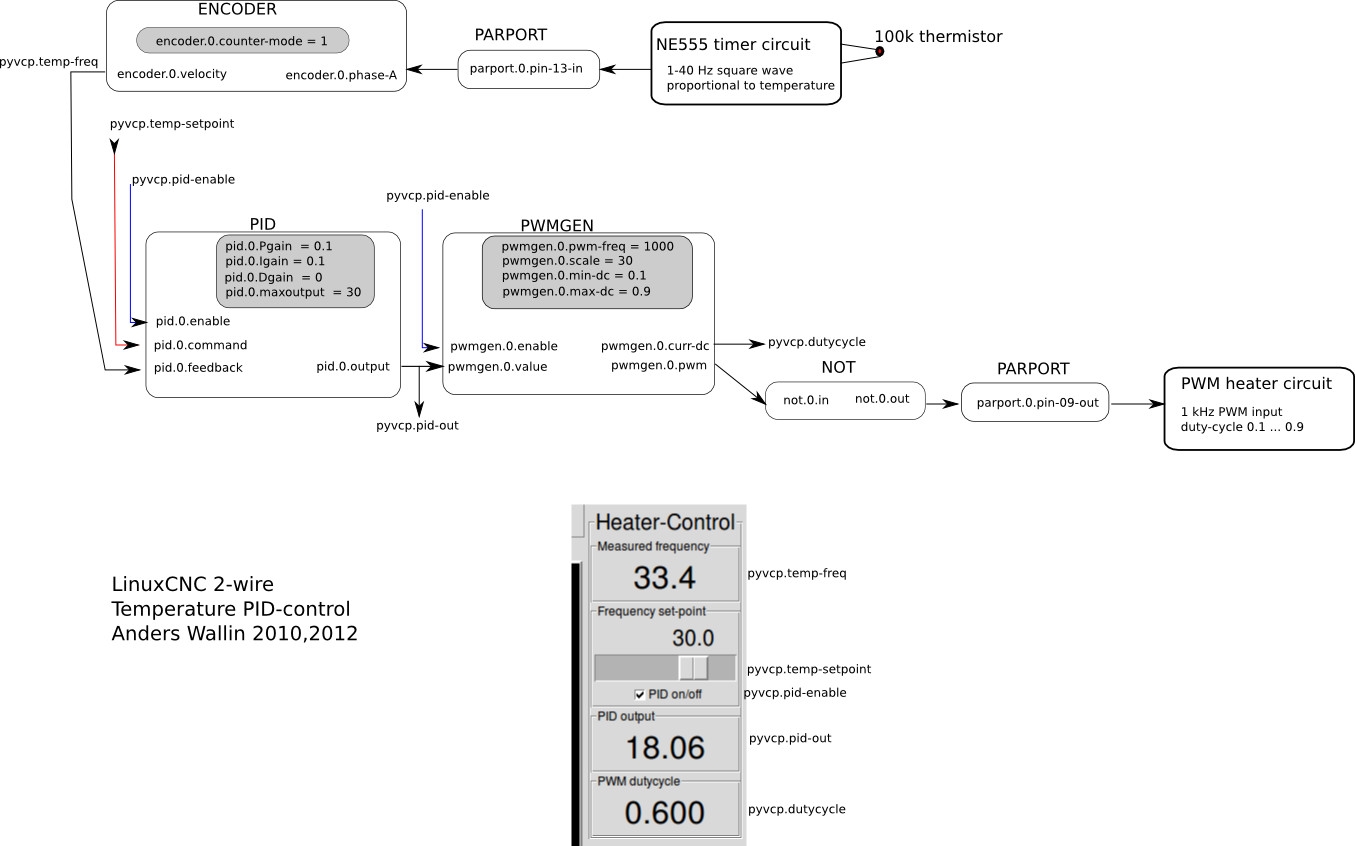
There's been some interest in my 2-wire temperature PID control from 2010. It uses one parallel port pin for a PWM-heater, and another connected to a 555-timer for temperature measurement. I didn't document the circuits very well, but they should be simple to reproduce for someone with an electronics background.

Here's the HAL setup once again:

The idea is to count the 555 output-frequency with an encoder, compare this to a set-point value from the user, and use a pid component to drive a pwm-generator that drives the heater.

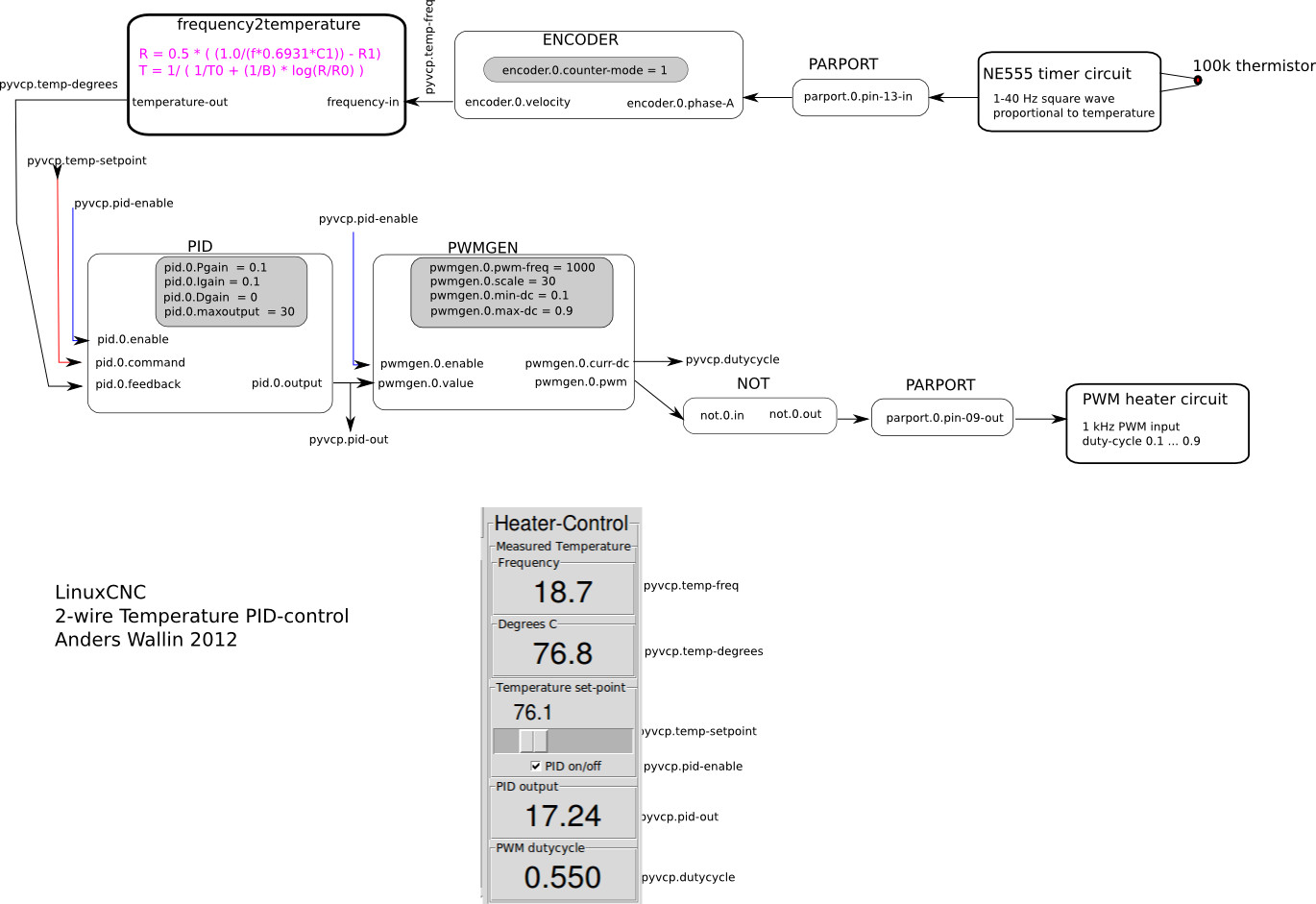
Now it might be nicer to set the temperature in degrees C instead of a frequency. I've hacked together a new component called frequency2temperature that can be inserted after the encoder. This obviously required the thermistor B-parameters as well as the 555-astable circuit component values as input (these are hard-coded constants in frequency2temperature.comp) . Like this:

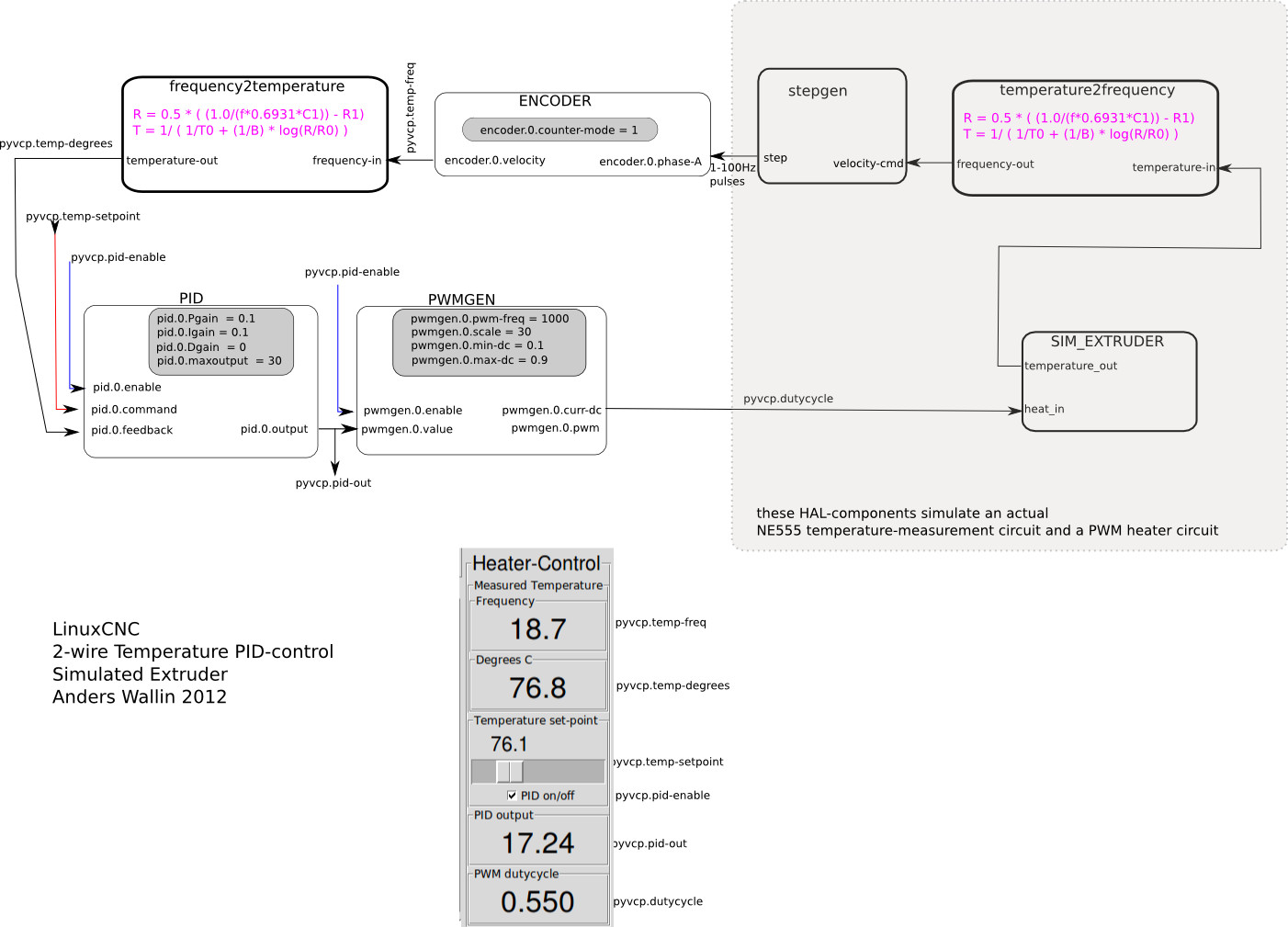
I didn't have the actual circuits and extruder at hand when coding this. So instead I made a simulated extruder (sim_extruder) component and generated simulated 555-output. Like this:

This also requires a conversion in the reverse direction called temperature2frequency. A stepgen is then used to generate a pulse-train (simulating the 555-output).

  • The INI and HAL files for the simulated extruder, based on the default axis_mm config: simextruder
  • frequency2temperature component:  frequency2temperature.comp (install with: "comp --install frequency2temperature.comp")
  • temperature2frequency component: temperature2frequency.comp (only for simulated setup, not required if you have actual hardware)
  • sim_extruder component: sim_extruder.comp (only for simulated setup, not required if you have actual hardware)

"heartyGFX" has made some progress on this. He has a proper circuit diagram for the PWM-heater and 555-astable. His circuits look much nicer than mine!

The diagrams above were drawn with Inkscape in SVG format: temp_pid_control_svg_diagrams

Why Real-Time?

Why bother with these real-time kernels and APIs at all? Isn't timing on a modern PC good enough? Look at this:

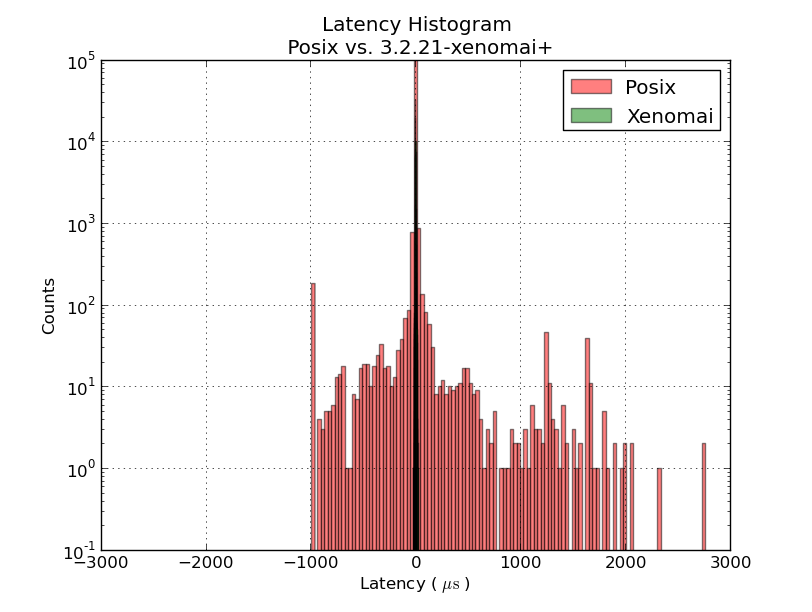
This histogram shows latency-numbers from the same 1ms thread test run compiled without (red) and with (green) real-time enabled. All the green real-time data clusters around zero +/- 20us. Without real-time enabled the event we are expecting to happen every 1 ms might happen almost 1 ms too early, or up to 3 ms late. With real-time the timing is mostly consistent to better than 1% (10 us) with a worst-case jitter of 2% (20 us).

Latency Histogram

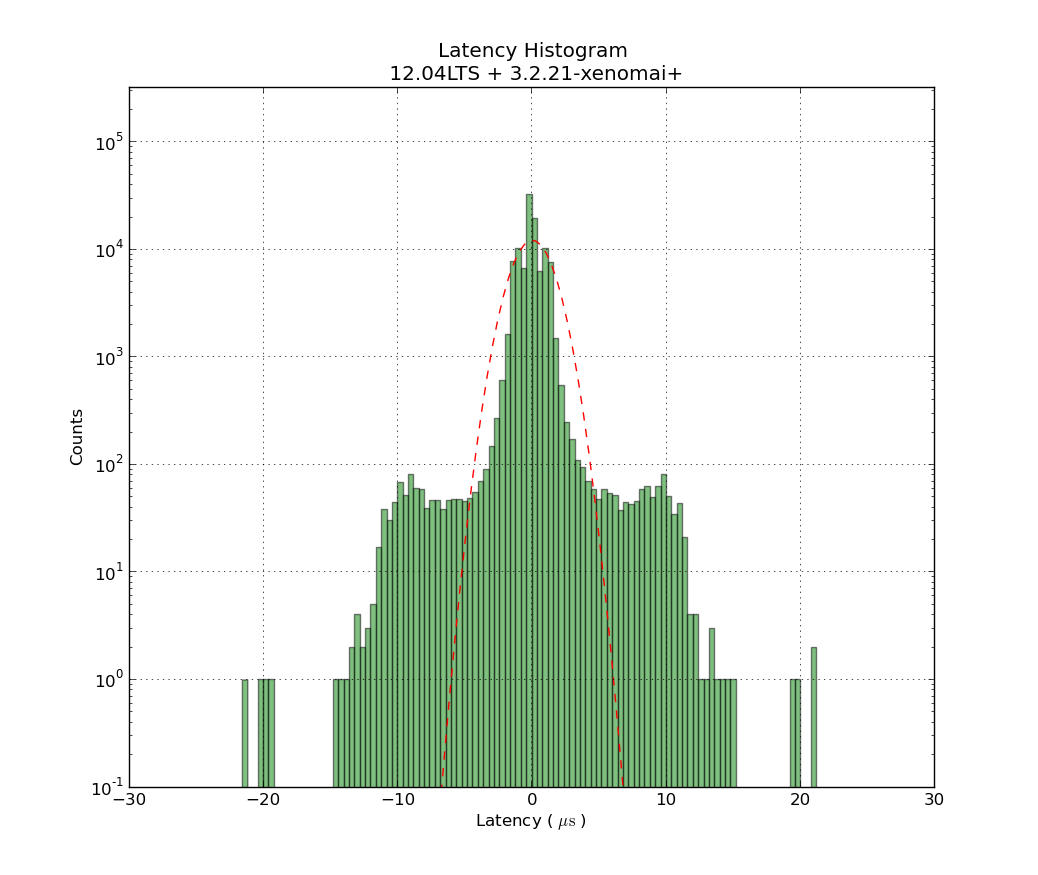
This shows a latency-histogram for a 1 ms thread running on Xenomai on my recently acquired ITX-board. Note how badly the histogram is approximated by a normal distribution (Gaussians look like parabolas with logarithmic y-scale!). See also Michael's recent RPi data and  Kent's Athlon/P4 data.

The usual latency-test numbers people report is the maximum latency, a measure of how far out to the left or right the most distant single data point lies. The histrogram can probably be used to extract many more numbers, but for real-time critical applications like cnc-machine control the maximum latency is probably an OK figure of merit.

The latency numbers are recorded with a simple HAL component:lhisto.comp

The instantaneous latency-number is then put in a FIFO by the real-time component sampler and written to a text-file using halsampler. I'm setting this up with the following HAL commands (put this in a file myfile.halrun and run with "halrun -f myfile.halrun")

loadrt threads name1=servo period1=1000000
loadrt sampler depth=1000 cfg=S
loadrt lhisto names=shisto
addf shisto servo
addf sampler.0 servo
net latency shisto.latency sampler.0.pin.0
start
loadusr halsampler -c 0  latencysamples.txt

The numbers can now be plotted with matplotlib. I'm using the following script:

1
2
3
4
5
6
7
8
9
10
11
12
13
14
15
16
17
18
19
20
21
22
23
24
import numpy as np
import matplotlib.pyplot as plt
import matplotlib.mlab as mlab
# load data from file
x = np.loadtxt('latencysamples.txt' )
x=x/1e3 # convert to microseconds
 
fig = plt.figure()
ax = fig.add_subplot(111)
nbins = len(x)/1000
n, bins, patches = ax.hist(x, nbins,  facecolor='green', alpha=0.5, log=True)
bincenters = 0.5*(bins[1:]+bins[:-1]) # from matlplotlib example code
mu = np.mean(x)
sigma = np.std(x)
area = np.trapz(n,bincenters) # scale normpdf to have the same area as the dataset
y = area * mlab.normpdf( bincenters, mu, sigma)
l =  ax.plot(bincenters, y, 'r--', linewidth=1)# add a 'best fit' line for the normal PDF
 
ax.set_xlabel('Latency ( $ \mathrm{ \mu s } $ ) ')
ax.set_ylabel('Counts')
ax.set_title('Latency Histogram\n 12.04LTS + 3.2.21-xenomai+')
ax.set_ylim(1e-1, 10*max(n))
ax.grid(True)
plt.show()

LinuxCNC on Ubuntu 12.04LTS

Recent developments has made it possible to run LinuxCNC on the latest LTS release of Ubuntu. This is experimental work, so not recommended for controlling a real machine just yet. The main obstacle for moving LinuxCNC from 10.04LTS to a more recent distribution has been the RTAI real-time kernel, which has not been kept up-to-date with development of the normal Linux kernel. Fortunately there are alternatives such as Xenomai or RT_PREEMPT.

Here is a step-by-step description of the install/build process, if you want to experiment with this.

  1. Download and install a normal 32-bit 12.04LTS Ubuntu (ubuntu-12.04.1-desktop-i386.iso). Note that the 64-bit version is not supported for the steps that follow further down. I could not get Ubuntu's startup-disk-creator to work, so I used unetbootin to write the ISO-file to a USB-stick.
  2. It's possible to compile the xenomai-kernel from scratch, along with the runtime etc., but I used pre-compiled deb-packages by Michael Haberler from here: http://static.mah.priv.at/public/xenomai-debs/
  3. Install the xenomai kernel:
    sudo dpkg -i linux-headers-3.2.21-xenomai+_0.1_i386.deb
    sudo dpkg -i linux-image-3.2.21-xenomai+_0.1_i386.deb
  4. make sure it will show up as a GRUB-entry when booting:
    sudo update-initramfs -c -k 3.2.21-xenomai+
    sudo update-grub
  5. reboot. uname -r should now show: 3.2.21-xenomai+
  6. now install the xenomai runtime:
    sudo dpkg -i libxenomai1_2.6.1_i386.deb
    sudo dpkg -i libxenomai-dev_2.6.1_i386.deb
    sudo dpkg -i xenomai-runtime_2.6.1_i386.deb

This installs the xenomai system on top of which a recently available version of LinuxCNC can be built. There are probably many ways to now obtain the tools/dependencies that are required. I used the following:

  1. sudo apt-get install synaptic
    sudo apt-get install git
  2. Now using synaptic, install the following packages (I found these are required for a minimal linuxcnc build):
    build-essential
    autoconf
    libpth-dev
    libglib2.0-dev
    libgtk2.0-dev
    tcl-dev
    tk-dev
    bwidget
    libreadline-dev
    python-tk
    python-dev
    libgl1-mesa-dev
    libglu1-mesa-dev
    libxmu-dev
  3. Get Michael's version of LinuxCNC that can be compiled for Xenomai:
    git clone git://git.mah.priv.at/emc2-dev emc2-dev
    cd emc2-dev
    git branch --track rtos origin/rtos-integration-preview1
    git checkout rtos
  4. Configure and build for Xenomai:
    cd src
    ./configure --with-threads=xenomai-user --enable-run-in-place
    make
    sudo make setuid
  5. Test:
    . ./scripts/rip-environment
    latency-test

This new version of LinuxCNC can be built without a real-time kernel (previously called "simulator" or "sim") or with any of the real-time kernel alternatives: RTAI, Xenomai, RT_PREEMPT. It should be possible to compare real-time performance in the form of latency-numbers with different hardware and kernels.