WordPress 2.1

I've upgraded to the latest WordPress, release 2.1

Hopefully everything works as before.

Funnily, the biggest new thing (besides 'boring' security fixes) advertized with 2.1 is a new visual editor for posts. But to my surprise I found it was not enabled by default! In the admin panel you need to go Users/Your Profile and check the "Use the visual editor when writing" tickbox to get the new and improved editor.

There's also a new spell-checker, but for me it errors out with a cryptic message "Could not execute AJAX call, server didn't return valid a XML."

For some reason I also needed to replace my <code>.htaccess</code> file for everything to work.

Update: I'm still finding it quite annoying that WordPress creates posts with no ALT tag when I insert images and don't bother to include some text in the ALT field. This results in errors when doing XHTML validation. So I've filed a WordPress bug report. Let's see what happens!
Tweaking the header

Some notes, mostly for myself, about how I chaged the header image and the way the title is displayed. I bet this will be usefull after the next WordPress update when the theme most likely gets reset back to default.

To get a header image that 'rotates' i.e. is updated with a new random picture each time the page is loaded, I used Matt Mullenweg's simple rotate script. I named it rotate.php and placed it in wp-content/header-images/

I then placed the images I want as headers into wp-content/header-images/ and modified the CSS stylesheet for my theme:

#header {

background: #73a0c5 url('http://www.anderswallin.net/wp-content/header-images/rotate.php') no-repeat  center;

}

Note that some browsers (Firefox!) are smart enough to cache the header image, so if you want to see a new header pic simply pressing the 'reload' button won't do - you need to do a full reload of the page by pressing Ctrl-F5. This is not necessary using Internet Explorer

Also, from the default layout of 4em size and centered alignment, my blog title is now a bit smaller and positioned in the top left corner (so as not to obstruct the nice header pic!):

h1 {

font-size: 3em;

position: absolute;

text-align: left;

bottom: 150px;

text-indent: 0.8em

}

Update: I've made a Photo page with all the banner images and short descriptions.

Enclosure for servo electronics

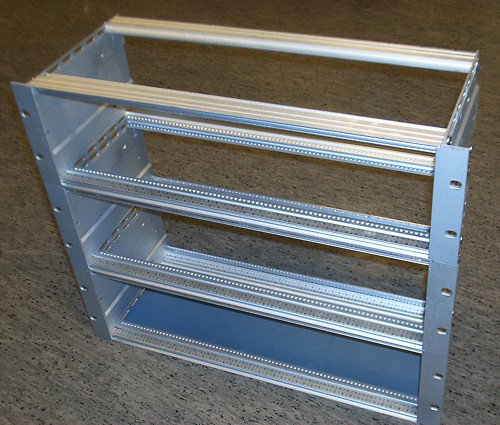
I've bought three 19" rack enclosures from fellow cnc-enthusiast Jiri K:

My plan is to house the PSU, based on a 230 VAC to 2x30 VAC 1.8 kVA transformer, in the bottom box (I might have to extend the encolsure a little, the transformer should the same as Sauli J:s transformers, about 220x220x120mm). The middle box will have the servo amplifiers, and the top box will contain the optoisolators and some low-voltage logic. The top box connects to the m5i20 card in the computer via three 50-pin ribbon cables.

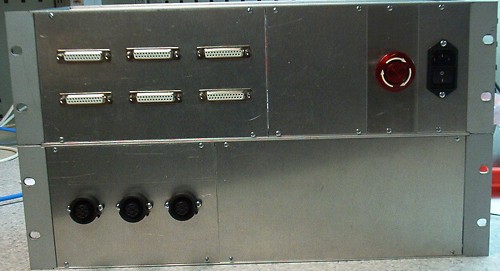
Together with Jari we made some panels for the servo box (bottom), and the logic box (top). The servo amps connect to the motors through the round black 7-pin connectors. Each pin is rated for 7.5 A, so I might use two pins per pole just to be safe. The logic box has six D25 connectors: four for encoders (X, Y, Z, and Spindle), one for the jog pendant, and one for limit switches (we'll have to make a separate Y-cable or something for those). There's an E-stop switch to the right, and a connector+switch for AC mains.

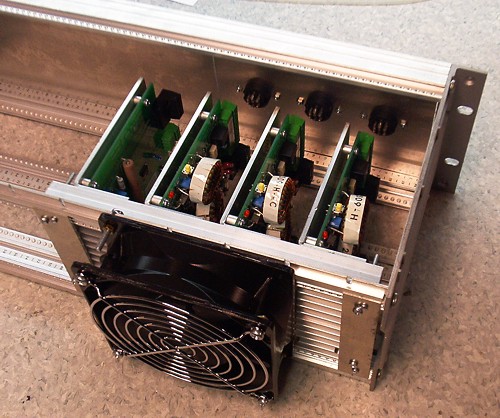
Here I've mounted three PWM servo amplifiers and one PWM switch from pico-systems to the back of the servo box. Secured to the back rails of the box by four M3 screws to the heatsink. The 120x120 mm fan is probably a bit overkill - but overkill is fine when it comes to cooling. At the top you see the back of the motor connectors.

More pyVCP Widgets

Since last Monday, I've been adding to the range of available pyVCP widgets:

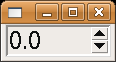
Spinbox:

Jeff Epler suggested that my initial 'jognumber' would be better implemented with a Tkinter spinbox. It sets the value of a FLOAT by either pressing the up and down arrows, or using the mouse-wheel.

Radiobutton:

This widget creates a number of BIT pins and sets only one of them, corresponding to the checked box, true.

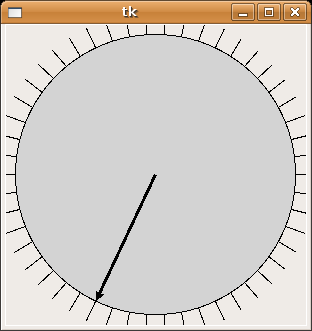
Jogwheel:

This resembles a real jog-wheel, and outputs a FLOAT count corresponding to the position of the wheel. The wheel rotates either by dragging with the mouse, or by rolling with the mouse-wheel. The number of counts is adjustable, 50 cpr shown in the pic I think. This will be useful for debugging jogwheel code to be used with real jogwheels, but could also find other use in pyvcp panels.

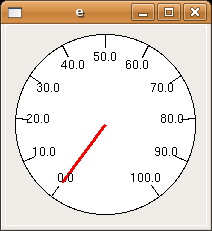
Meter:

A traditional dial-indicator, used for displaying a FLOAT. The start and end values are user-configurable.

Gooseneck prototype

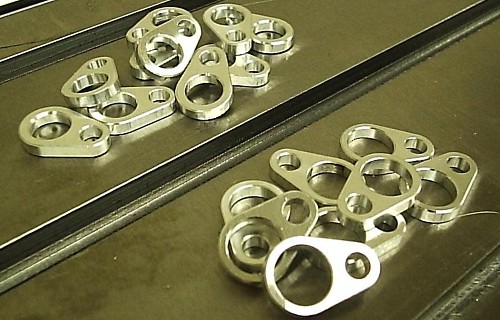
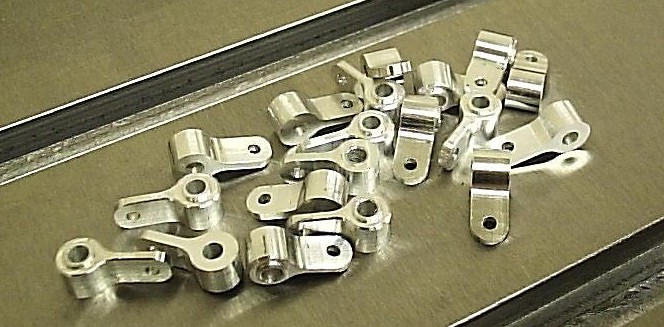
We've been designing a ball-raced gooseneck for the new Noux boats. Jari sent me some pictures of his progress.


These pieces are mounted around the mast. There are two sizes, for either 12.4 mm or 11 mm Easton masts. The smaller hole is 6 mm in diameter and fits a flanged miniature ball bearing.

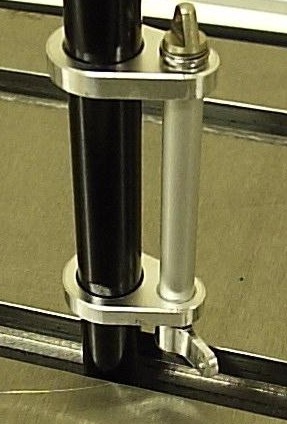
This piece goes on the bottom of the gooseneck axis. It has a raised ring towards the bearing, so that it makes contact only with the rotating part of the bearing.

Here's the first assembled prototype, with bearings fitted to the parts shown in the top picture. A 6 mm diameter aluminium rod forms the axis of the gooseneck. The rod is drilled and tapped with M3 threads in both ends. At the top, a Sails ETC flat eyebolt screws into the axis. At the bottom, the part shown above is secured with an M3 screw. We're hoping that the eyebolt at the top will fit the standard Sails ETC mainboom front end fitting.

We've not come to a final decision on a variable-length compression strut or kicking strap yet... The standard Sails ETC fitting works, but it attaches to a hole in the boom, which over time tends to corrode and wear into an oval shape. Bright ideas required 😉

Extending AXIS with pyVCP

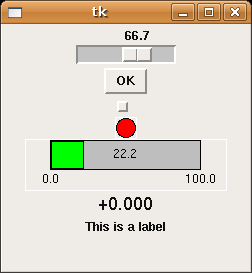
Maybe the most popular GUI for EMC is called AXIS. It shows a number of useful buttons, the 3D view, G-code file view etc. But depending on machine configuration and hardware, users might want to display different things on the screen and have customized controls. There's been some previous work on virtual control panels, or VCP. That was done in C using GTK widgets which I am not at all familiar with... I really want this kind of control panel for the new mill setup, so I've put together two Python programs that create Tkinter widgets that are connected to HAL pins. I call it pyVCP (Python Virtual Control Panel). Here's the first test from yesterday:


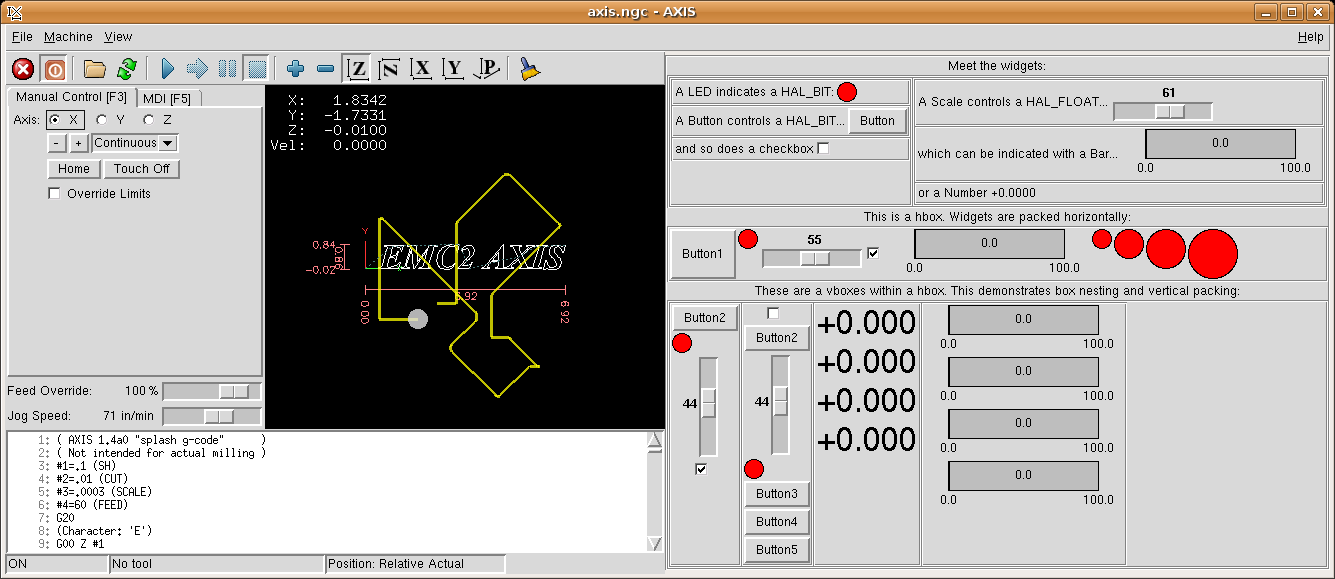
The uppermost widget is a slider that controls a HAL_FLOAT. Next is a button which sets a HAL_BIT true when pressed. The small rectangle is a checkbutton, which stays down when pressed, also for controlling a HAL_BIT. The status of a bit can be shown with a LED (red circle). HAL_FLOAT values can be indicated either by bars (green), or as a number.

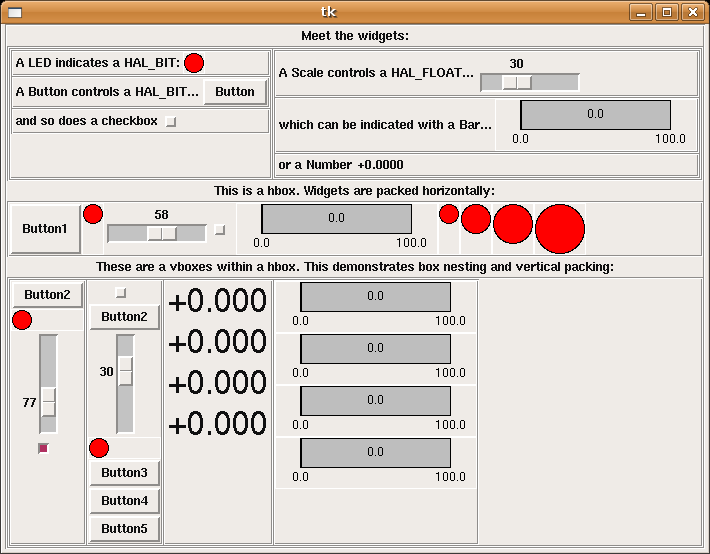
To enable users to individually configure their extra bells and whistles it makes sense to have a text file that describes the panel setup. The easiest way I found to read and write structured data in Python was XML. Here I've used a number of the different widgets and ways to pack them to demonstrate what's possible:

Finally the best part. Since AXIS is also written in Python/Tkinter, AXIS author Jeff Epler was quickly able to integrate my work with the current AXIS, so you can have your custom control panel right next to the familiar view:

There's a bit more (including source files) in the EMC Wiki, and the latest versions are committed to CVS.